
CSS PLAY
Doing It With Style
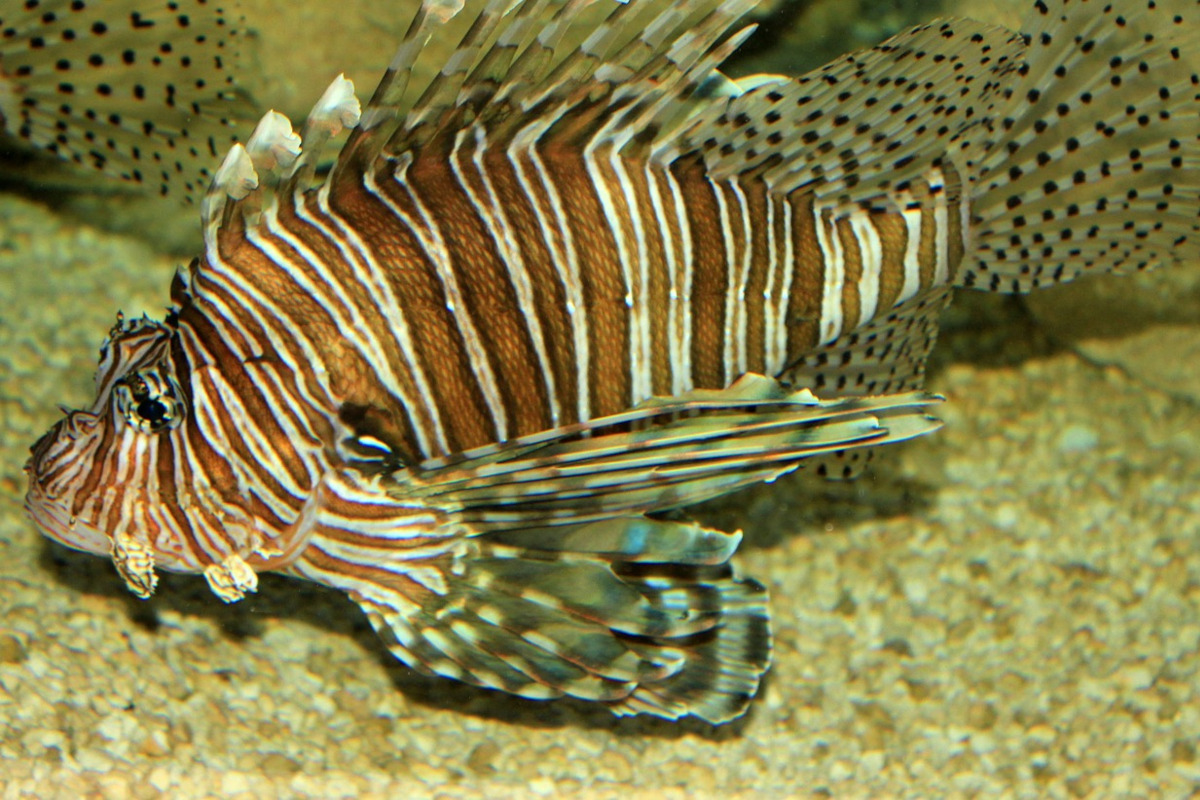
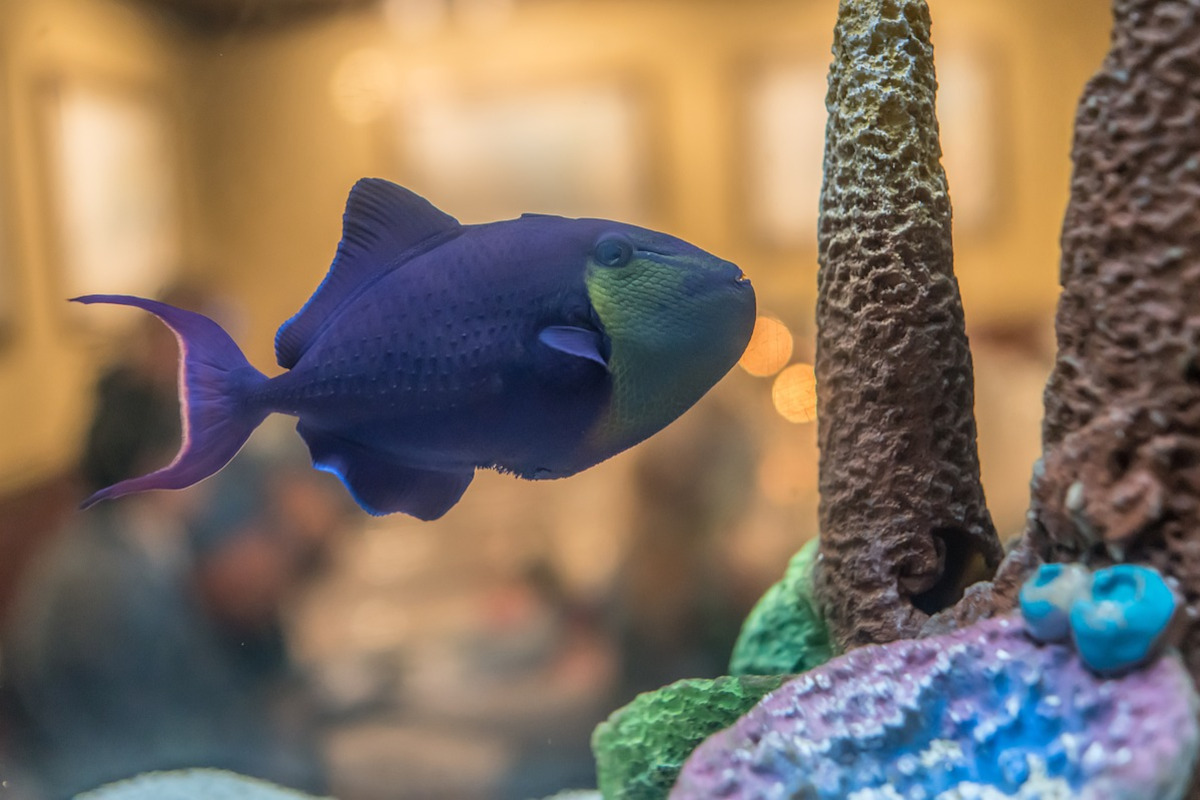
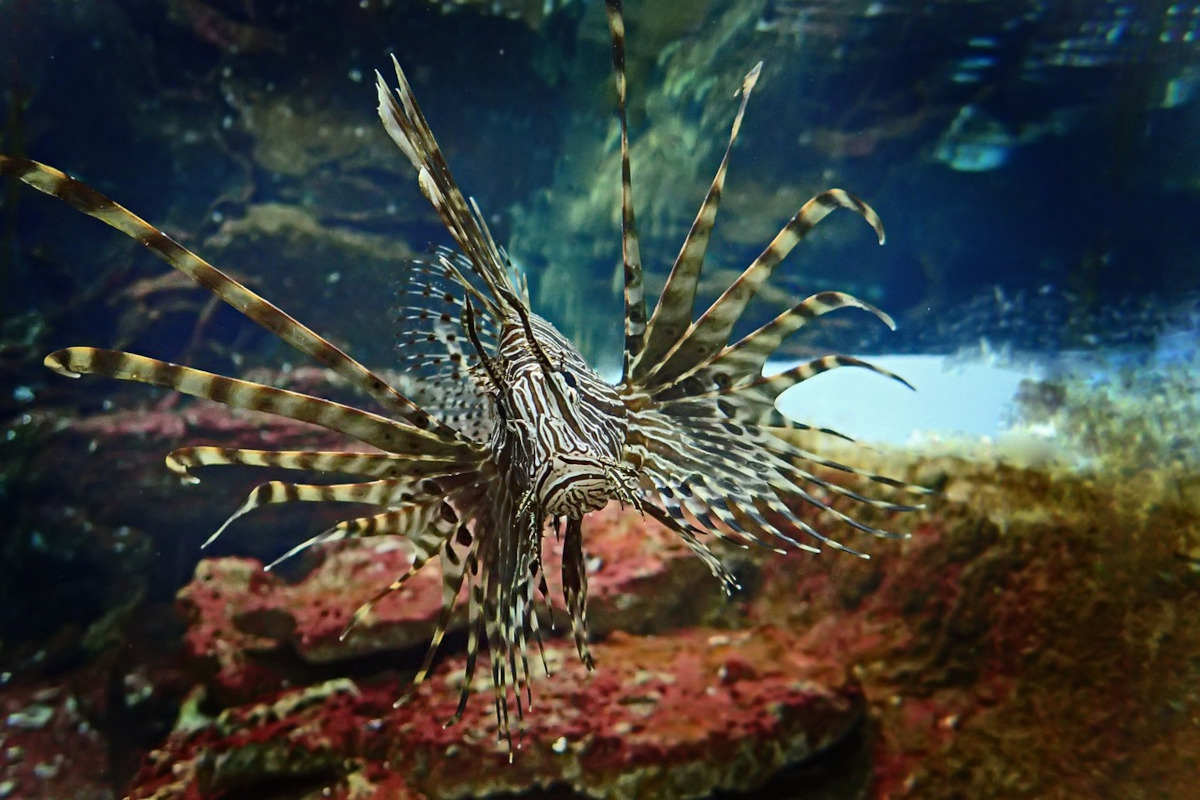
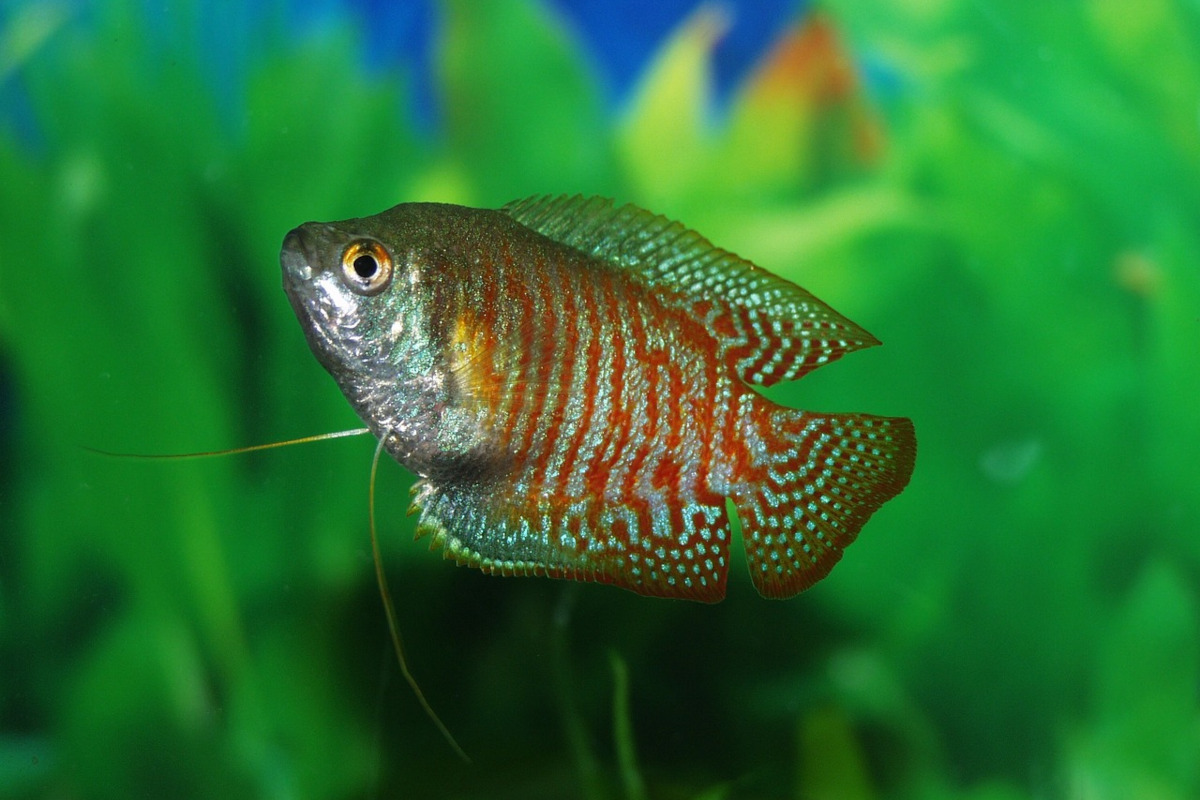
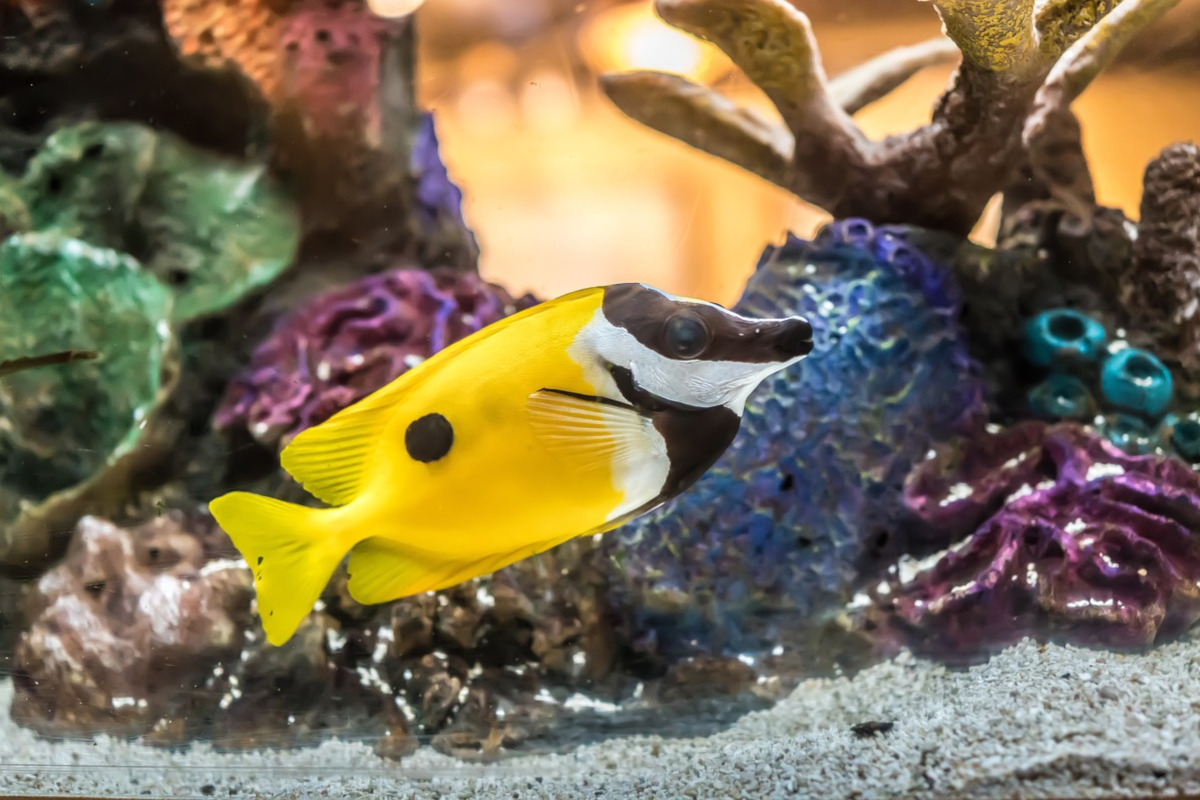
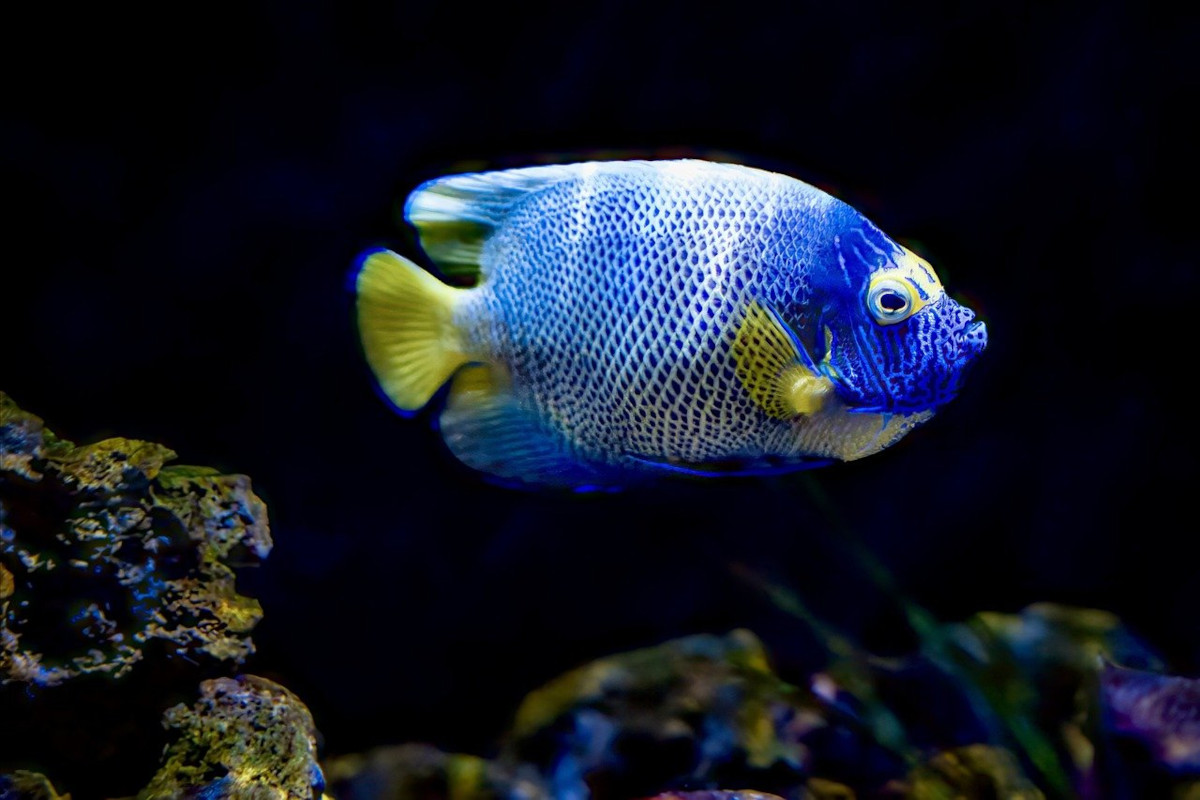
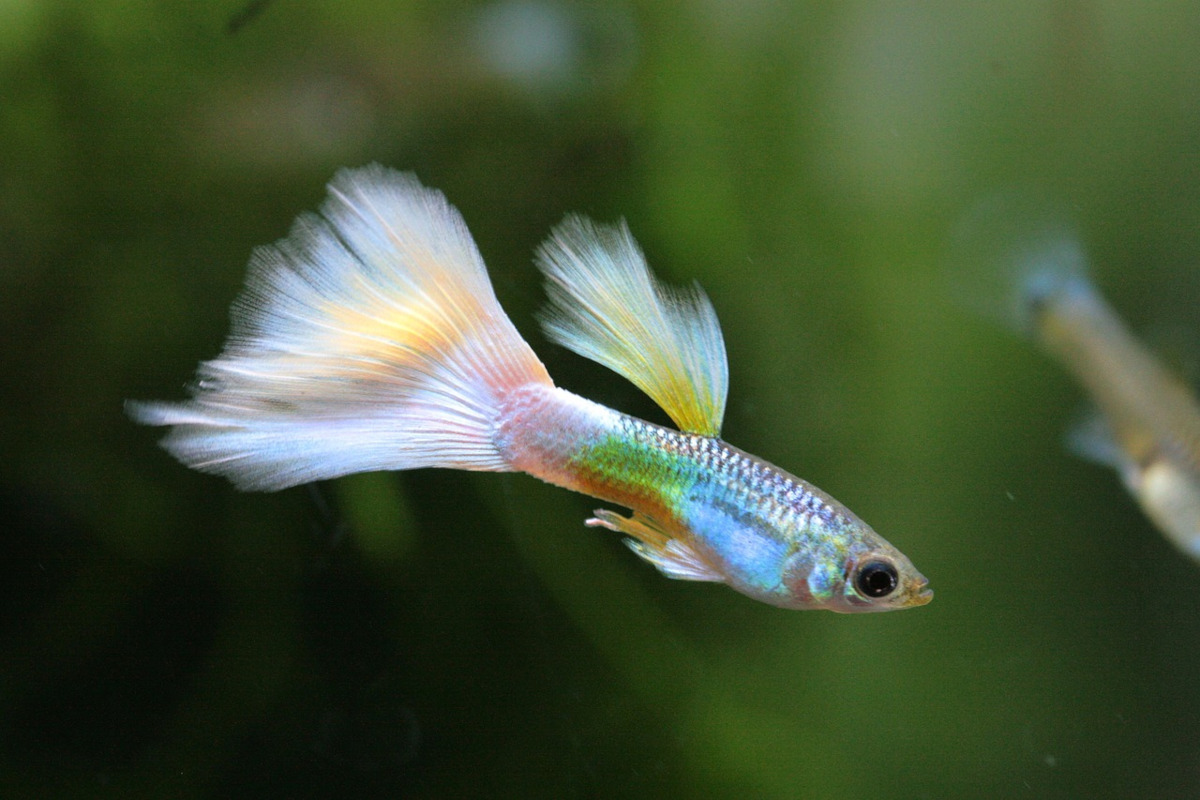
The #2 in the series 'HOW TO'. This one adds a play and pause function to the Auto Run Carousel.
For this we need to add the play/pause HTML to the original auto run HTML.
<div id="playpause">
<input type="checkbox" id="stopstart">
<span id="cover"></span>
<label for="stopstart"></label>
<div id="outer">
<div id="slide">
<div id="show">
<img src="fish2/fish1.jpg" title="" alt="">
<img src="fish2/fish2.jpg" title="" alt="">
<img src="fish2/fish3.jpg" title="" alt="">
<img src="fish2/fish4.jpg" title="" alt="">
<img src="fish2/fish5.jpg" title="" alt="">
<img src="fish2/fish6.jpg" title="" alt="">
<img src="fish2/fish7.jpg" title="" alt="">
<!-- repeat the first image at the end -->
<img src="fish2/fish1.jpg" title="" alt="">
</div>
</div>
</div>
</div>
The id="playpause" is the addition of an outer div that will position the play and pause controls.
Because this also controls the width of the carousel/slideshow, the id="outer" div is restyled to width:100% and height:100%
The <input type="checkbox" id="stopstart"> will control which play or pause icon is shown.
The <span id="cover"></span> is used to stop the play/pause icon from being clickable when the slideshow images are scrolling.
Finally, the <label for="stopstart"></label> is uses to toggle the checkbox input,
The additional CSS is as follows.
This makes the carousel/slideshow responsive.
#playpause {position:relative; width:90%; max-width:720px; margin:30px auto; aspect-ratio:var(--aspect); overflow:hidden;}
Move the checkbox input off screen.
#playpause #stopstart {position:fixed; left:-900px; top:0;}
A cover for the label when the images are sliding. This uses the @keyframes 'stop' animation to reposition the #cover.
#playpause #cover {display:block; width:50px; height:50px; position:absolute; left:10px; top:10px; z-index:110; animation:stop var(--slidetime) infinite;}
Style the label to give it a size and position on the carousel/slideshow.
#playpause label {display:flex; justify-content:center; align-items:center; cursor:pointer; width:50px; height:50px; position:absolute; left:10px; top:10px; z-index:100; background:#fff5; border-radius:100%;}
#playpause label::before {content:""; display:none; width:0; height:0; border:10px solid transparent; border-width:15px 0 15px 25px; border-left-color:green; margin-left:3px;}
#playpause label::after {content:""; display:none; width:8px; height:30px; border:10px solid red; border-width:0 8px 0 8px;}
If checkbox is checked then pause the @keyframes animations.
#playpause:has(#stopstart:checked) #show {animation-play-state:paused;}
#playpause:has(#stopstart:checked) #cover {animation-play-state:paused;}
Show either the play or pause icon depending on the checkbox state.
#playpause:has(#stopstart:checked) label[for="stopstart"]::before {display:block;}
#playpause:not(:has(#stopstart:checked)) label[for="stopstart"]:after {display:block;}
Animation to move the #playpause #cover over the label to stop a click while the images are sliding.
@keyframes stop {
0% {margin-left:-9000px;}
80% {margin-left:-9000px;}
80.0001% {margin-left:0;}
100% {margin-left:0;}
}
You can easily change the size, position and colors of the play and pause 'icons' using just CSS.